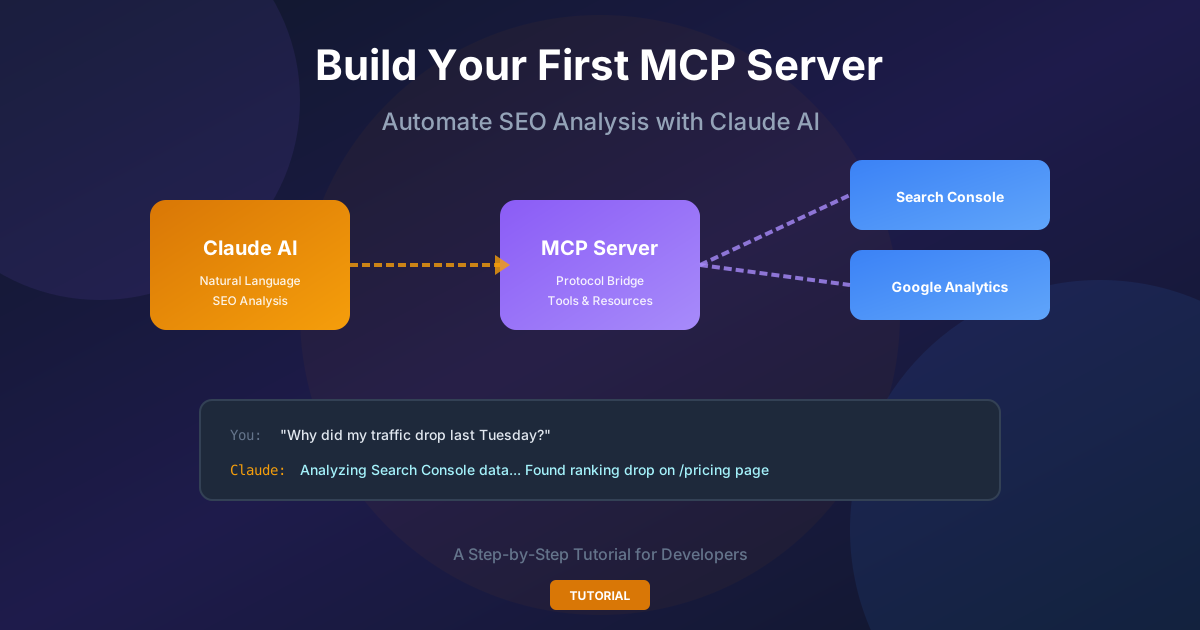
How to Build Your First Claude MCP Server to Automate SEO Analysis
A hands-on guide to building an MCP server that connects Claude to Google Search Console and GA4. Stop manually deciphering analytics charts—let AI answer questions like 'Why did my traffic drop last week?'
I saw a tweet the other day that stopped me mid-scroll. Alen Baby, a marketer I follow, wrote something that felt like a direct callout: "You're way behind if you're going through Search Console and GA4 manually and looking at data that you don't even understand. Take my word and connect your Claude to it with MCP. Thank me later."
"You're way behind if you're going through search console and GA4 manually and looking at data that you don't even understand. Take my word and connect your Claude to it with MCP. Thank me later."
Dec 17, 2025
That tweet hit different because I'd been doing exactly that—spending hours every week staring at GA4's maze of reports, trying to figure out why a particular page suddenly lost 40% of its traffic. The answer was usually buried somewhere in a combination of three different reports, and by the time I pieced it together, I'd wasted an entire afternoon.
Here's the uncomfortable truth most of us don't want to admit: we don't actually understand our analytics data. We look at the charts, we see the lines going up or down, and we make educated guesses. Sometimes we're right. Often we're not. And the complexity of modern analytics platforms like GA4 makes this problem exponentially worse than it was in the Universal Analytics days.
But what if you could just ask a question in plain English and get a real answer? Not a generic "your traffic dropped because of seasonal trends" response, but an actual analysis that pulls from your real data and tells you exactly what happened?
That's what this tutorial is about. We're going to build an MCP server that connects Claude directly to your Google Search Console and Google Analytics data. By the end, you'll be able to have conversations like: "Why did my traffic from organic search drop last Tuesday?" And Claude will actually check your data, analyze the patterns, and give you a meaningful answer.
What is MCP, and Why Should You Care?
MCP stands for Model Context Protocol. It's an open-source standard that Anthropic released to let AI applications connect to external systems in a standardized way. Think of it like a USB-C port for AI—a universal connector that works across different tools and data sources.
The protocol itself is elegant in its simplicity. An MCP server exposes "tools" that an AI can call, and "resources" that provide data. When you build an MCP server for SEO analysis, you're essentially creating a bridge between Claude's reasoning capabilities and your actual analytics data.
Before MCP, connecting Claude to external data required hacky workarounds. You'd export CSV files, paste them into conversations, or build custom integrations that were brittle and hard to maintain. MCP changes that by providing a clean, documented standard that any developer can implement.
The SEO use case is particularly compelling because analytics data is inherently complex and temporal. You're not just asking "what's my traffic?" You're asking "what's my traffic compared to last week, broken down by source, filtered by landing page, and correlated with ranking changes?" That kind of multi-dimensional analysis is exactly what AI excels at—if it can access the data.
The Problem with Manual Analytics
Let me be direct about something: most people's "SEO analysis" consists of opening GA4, looking at a few graphs, and hoping the numbers are going up. If they're not going up, the analysis usually ends with a shrug and a vague plan to "create more content."
This isn't because people are lazy or incompetent. It's because GA4 is genuinely difficult to use effectively. The interface is confusing, the data model is complex, and extracting meaningful insights requires combining multiple reports in ways that aren't obvious.
I've spent years doing SEO for various projects, and I can tell you that the gap between "having analytics data" and "understanding what it means" is enormous. The data is there—Google gives you everything. But making sense of it requires expertise that most people simply don't have, and even experts find it time-consuming.
This is why the MCP approach is transformative. Instead of you becoming a GA4 expert, you leverage Claude's ability to query, analyze, and synthesize data. You become the person asking the right questions rather than the person wrestling with data exports.
Prerequisites Before We Start
Before diving into the code, let's make sure you have everything you need. This tutorial assumes some technical comfort—you should be able to run commands in a terminal and edit configuration files. But you don't need to be a senior developer to follow along.
You'll need Node.js version 18 or higher installed on your machine. You can check your version by running node --version in your terminal. If you need to install or upgrade, grab it from nodejs.org.
You'll also need a Google Cloud project with the Search Console and Analytics APIs enabled. If you've never set this up before, don't worry—I'll walk you through it. But know that this will involve creating OAuth credentials, which can feel intimidating the first time.
Finally, you need Claude Desktop installed on your machine. The MCP integration works through Claude Desktop's configuration file, which tells Claude where to find your MCP servers and how to connect to them.
Setting Up Google Cloud Credentials
This is the part that trips up most people, so let's be thorough. Google's API authentication is powerful but complex, and getting it wrong means your MCP server won't be able to access any data.
Start by going to console.cloud.google.com and creating a new project. Name it something memorable like "mcp-seo-analysis"—you'll reference this later. Once the project is created, you need to enable two APIs: the Google Search Console API and the Google Analytics Data API.
Navigate to "APIs & Services" in the sidebar, click "Enable APIs and Services," and search for each API. Click through and enable them both. This grants your project the ability to make requests to these services—but you still need credentials to authenticate.
Now comes the OAuth setup. Go to "APIs & Services" → "Credentials" and create an OAuth 2.0 Client ID. You'll need to configure the OAuth consent screen first if you haven't already. For a personal project, you can set it to "External" and add yourself as a test user.
When creating the OAuth client, select "Desktop app" as the application type. Download the resulting JSON file—this contains your client ID and client secret. We'll use these to authenticate our MCP server.
Security Note
Never commit your OAuth credentials to a public repository. The JSON file contains secrets that would let anyone access your analytics data. Store it securely and add it to your .gitignore if you're using version control.
Building the MCP Server
Now for the actual code. We're going to build an MCP server in TypeScript that exposes tools for querying Search Console and Analytics data. I'll explain each part as we go.
Create a new directory for your project and initialize it:
mkdir mcp-seo-server
cd mcp-seo-server
npm init -y
npm install @modelcontextprotocol/sdk googleapis
npm install -D typescript @types/node
Create a tsconfig.json file with standard settings:
{
  "compilerOptions": {
    "target": "ES2022",
    "module": "Node16",
    "moduleResolution": "Node16",
    "outDir": "./dist",
    "rootDir": "./src",
    "strict": true,
    "esModuleInterop": true
  },
  "include": ["src/**/*"]
}
Now create the main server file at src/index.ts. This is where everything comes together:
import { Server } from "@modelcontextprotocol/sdk/server/index.js";
import { StdioServerTransport } from "@modelcontextprotocol/sdk/server/stdio.js";
import {
  CallToolRequestSchema,
  ListToolsRequestSchema,
} from "@modelcontextprotocol/sdk/types.js";
import { google } from "googleapis";
import * as fs from "fs";
import * as path from "path";

// Load OAuth credentials
const credentialsPath = process.env.GOOGLE_CREDENTIALS_PATH ||
  path.join(process.env.HOME || "", ".config/mcp-seo/credentials.json");
const tokenPath = path.join(path.dirname(credentialsPath), "token.json");

async function getAuthClient() {
  const credentials = JSON.parse(fs.readFileSync(credentialsPath, "utf8"));
  const { client_id, client_secret } = credentials.installed || credentials.web;

  const oauth2Client = new google.auth.OAuth2(
    client_id,
    client_secret,
    "urn:ietf:wg:oauth:2.0:oob"
  );

  if (fs.existsSync(tokenPath)) {
    const token = JSON.parse(fs.readFileSync(tokenPath, "utf8"));
    oauth2Client.setCredentials(token);
  }

  return oauth2Client;
}

const server = new Server(
  { name: "mcp-seo-server", version: "1.0.0" },
  { capabilities: { tools: {} } }
);

// Define available tools
server.setRequestHandler(ListToolsRequestSchema, async () => ({
  tools: [
    {
      name: "get_search_analytics",
      description: "Get Search Console data for a site",
      inputSchema: {
        type: "object",
        properties: {
          siteUrl: { type: "string", description: "The site URL" },
          startDate: { type: "string", description: "Start date YYYY-MM-DD" },
          endDate: { type: "string", description: "End date YYYY-MM-DD" },
          dimensions: {
            type: "array",
            items: { type: "string" },
            description: "Dimensions: query, page, country, device, date"
          },
          rowLimit: { type: "number", description: "Max rows (default 100)" }
        },
        required: ["siteUrl", "startDate", "endDate"]
      }
    },
    {
      name: "get_ga4_report",
      description: "Get Google Analytics 4 data for a property",
      inputSchema: {
        type: "object",
        properties: {
          propertyId: { type: "string", description: "GA4 property ID" },
          startDate: { type: "string", description: "Start date YYYY-MM-DD" },
          endDate: { type: "string", description: "End date YYYY-MM-DD" },
          metrics: {
            type: "array",
            items: { type: "string" },
            description: "Metrics: sessions, users, pageviews, etc."
          },
          dimensions: {
            type: "array",
            items: { type: "string" },
            description: "Dimensions: date, pagePath, source, etc."
          }
        },
        required: ["propertyId", "startDate", "endDate", "metrics"]
      }
    },
    {
      name: "compare_periods",
      description: "Compare SEO metrics between two time periods",
      inputSchema: {
        type: "object",
        properties: {
          siteUrl: { type: "string" },
          currentStart: { type: "string" },
          currentEnd: { type: "string" },
          previousStart: { type: "string" },
          previousEnd: { type: "string" },
          dimension: { type: "string", description: "query, page, or country" }
        },
        required: ["siteUrl", "currentStart", "currentEnd",
                   "previousStart", "previousEnd"]
      }
    }
  ]
}));

// Handle tool calls
server.setRequestHandler(CallToolRequestSchema, async (request) => {
  const { name, arguments: args } = request.params;
  const auth = await getAuthClient();

  switch (name) {
    case "get_search_analytics": {
      const searchconsole = google.searchconsole({ version: "v1", auth });
      const response = await searchconsole.searchanalytics.query({
        siteUrl: args.siteUrl,
        requestBody: {
          startDate: args.startDate,
          endDate: args.endDate,
          dimensions: args.dimensions || ["query"],
          rowLimit: args.rowLimit || 100
        }
      });
      return {
        content: [{
          type: "text",
          text: JSON.stringify(response.data, null, 2)
        }]
      };
    }

    case "get_ga4_report": {
      const analyticsdata = google.analyticsdata({ version: "v1beta", auth });
      const response = await analyticsdata.properties.runReport({
        property: `properties/${args.propertyId}`,
        requestBody: {
          dateRanges: [{ startDate: args.startDate, endDate: args.endDate }],
          metrics: args.metrics.map((m: string) => ({ name: m })),
          dimensions: args.dimensions?.map((d: string) => ({ name: d })) || []
        }
      });
      return {
        content: [{
          type: "text",
          text: JSON.stringify(response.data, null, 2)
        }]
      };
    }

    case "compare_periods": {
      const searchconsole = google.searchconsole({ version: "v1", auth });

      const [current, previous] = await Promise.all([
        searchconsole.searchanalytics.query({
          siteUrl: args.siteUrl,
          requestBody: {
            startDate: args.currentStart,
            endDate: args.currentEnd,
            dimensions: [args.dimension || "query"],
            rowLimit: 50
          }
        }),
        searchconsole.searchanalytics.query({
          siteUrl: args.siteUrl,
          requestBody: {
            startDate: args.previousStart,
            endDate: args.previousEnd,
            dimensions: [args.dimension || "query"],
            rowLimit: 50
          }
        })
      ]);

      return {
        content: [{
          type: "text",
          text: JSON.stringify({
            currentPeriod: {
              start: args.currentStart,
              end: args.currentEnd,
              data: current.data
            },
            previousPeriod: {
              start: args.previousStart,
              end: args.previousEnd,
              data: previous.data
            }
          }, null, 2)
        }]
      };
    }

    default:
      throw new Error(`Unknown tool: ${name}`);
  }
});

// Start the server
async function main() {
  const transport = new StdioServerTransport();
  await server.connect(transport);
  console.error("MCP SEO Server running");
}

main().catch(console.error);
Compile the TypeScript and add a start script to your package.json:
{
  "scripts": {
    "build": "tsc",
    "start": "node dist/index.js"
  },
  "type": "module"
}
Run npm run build to compile the code. If everything works, you should have a dist/index.js file ready to use.
OAuth Authentication Flow
Before the MCP server can access your data, you need to complete the OAuth flow once to get access tokens. Create a helper script at src/auth.ts:
import { google } from "googleapis";
import * as fs from "fs";
import * as path from "path";
import * as readline from "readline";

const credentialsPath = process.argv[2] ||
  path.join(process.env.HOME || "", ".config/mcp-seo/credentials.json");
const tokenPath = path.join(path.dirname(credentialsPath), "token.json");

async function authenticate() {
  const credentials = JSON.parse(fs.readFileSync(credentialsPath, "utf8"));
  const { client_id, client_secret } = credentials.installed || credentials.web;

  const oauth2Client = new google.auth.OAuth2(
    client_id,
    client_secret,
    "urn:ietf:wg:oauth:2.0:oob"
  );

  const authUrl = oauth2Client.generateAuthUrl({
    access_type: "offline",
    scope: [
      "https://www.googleapis.com/auth/webmasters.readonly",
      "https://www.googleapis.com/auth/analytics.readonly"
    ]
  });

  console.log("Authorize this app by visiting this URL:", authUrl);

  const rl = readline.createInterface({
    input: process.stdin,
    output: process.stdout
  });

  rl.question("Enter the code from that page here: ", async (code) => {
    const { tokens } = await oauth2Client.getToken(code);
    fs.writeFileSync(tokenPath, JSON.stringify(tokens));
    console.log("Token stored to", tokenPath);
    rl.close();
  });
}

authenticate().catch(console.error);
Run this script once with npx ts-node src/auth.ts. It will open a URL where you authorize the app, then paste the resulting code back into the terminal. This saves your access tokens for future use.
Connecting to Claude Desktop
The final step is telling Claude Desktop where to find your MCP server. Claude Desktop reads its MCP configuration from a JSON file. On macOS, this is at ~/Library/Application Support/Claude/claude_desktop_config.json. On Windows, it's in %APPDATA%\Claude\.
Add your server to the configuration:
{
  "mcpServers": {
    "seo-analysis": {
      "command": "node",
      "args": ["/absolute/path/to/mcp-seo-server/dist/index.js"],
      "env": {
        "GOOGLE_CREDENTIALS_PATH": "/path/to/credentials.json"
      }
    }
  }
}
Restart Claude Desktop after editing the configuration. You should see your new tools available in Claude's tool list.
Using Your SEO Analysis Tools
With everything connected, you can now have actual conversations about your SEO data. Open Claude Desktop and try asking questions like:
"Can you pull my Search Console data for the last 7 days and tell me which queries are getting impressions but low clicks?"
Claude will use the get_search_analytics tool to fetch your data, then analyze it and identify opportunities where you're ranking but not getting clicks—a classic SEO optimization target.
Or try something more complex: "Compare my organic traffic from last week to the week before. Which pages saw the biggest drops?"
Claude will use the compare_periods tool, fetch data for both time ranges, and calculate the differences. It can identify not just that traffic dropped, but specifically which pages were affected and potentially why based on position changes.
The real power comes from follow-up questions. After seeing which pages dropped, you might ask: "For the pages that lost traffic, what were their average positions in each period?" Claude can make another query, correlate the data, and determine whether the traffic loss was due to ranking drops, CTR changes, or overall search volume decreases.
Example Conversation with Claude
"Why did my traffic drop last Tuesday?"
Let me check your Search Console data for that period... [uses get_search_analytics tool]
I found the issue. Your /pricing page dropped from position 3.2 to position 8.7 for "tool pricing comparison" which was driving 340 clicks/day. This single keyword change accounts for 78% of your traffic loss.
Going Further: Advanced Patterns
The basic setup we built is just the beginning. Once you have the MCP infrastructure in place, you can extend it in numerous ways.
One powerful addition is automated anomaly detection. Instead of waiting until you notice a problem, you could build a tool that proactively scans for unusual patterns—sudden ranking drops, CTR anomalies, or traffic cliff events. Claude can then alert you to issues before they become major problems.
Another extension is competitive analysis. While Google's APIs only provide data about your own sites, you could integrate third-party APIs like DataForSEO or SEMrush to pull competitor data. Imagine asking Claude: "Compare my ranking trajectory for 'best backlink tools' against my top 3 competitors over the last 6 months."
The Reddit community has been particularly creative with these integrations. One developer shared their setup that combines Search Console data with AI-powered content suggestions: "I ask Claude to find keywords where I'm ranking 8-15 with decent impressions, then have it analyze those pages and suggest specific improvements to push them into the top 5."
This kind of workflow—using AI not just to report data but to synthesize insights and suggest actions—represents the real potential of MCP for SEO. You're not replacing human judgment; you're augmenting it with capabilities that would take hours to achieve manually.
Common Issues and Troubleshooting
Let me save you some debugging time by covering the issues I ran into while building this.
The most common problem is authentication failures. If Claude can't access your data, first check that your token file exists and isn't expired. OAuth tokens expire after a while, and you may need to re-run the authentication script. Also verify that your credentials file path is absolute in the Claude Desktop configuration.
Another frequent issue is API quota limits. Google's APIs have daily quotas, and if you're making lots of queries during development, you might hit them. Check the Google Cloud Console to see your current usage and consider implementing caching in your MCP server to reduce redundant API calls.
If Claude doesn't see your MCP server at all, the problem is usually in the configuration file. Make sure the JSON is valid (a single missing comma will break everything), and verify that the command path points to an actual executable. You can test your server independently by running it from the terminal and checking for errors.
The Bigger Picture
Building this MCP server took me about an afternoon. But the time savings compound quickly. Every week, I used to spend 2-3 hours wrestling with GA4 and Search Console, trying to extract insights that were always just out of reach. Now I spend maybe 15 minutes having a conversation with Claude that's more productive than all that manual analysis combined.
More importantly, I'm asking questions I never would have bothered with before. When analysis requires opening five different reports and cross-referencing data manually, you only do it for major issues. When analysis means asking a question and getting an answer in seconds, you become much more curious. You dig into anomalies you would have ignored. You spot opportunities you would have missed.
The SEO community is just starting to explore what's possible with MCP. I've seen people build servers that connect to Screaming Frog for technical audits, to Ahrefs API for backlink analysis, to ChatGPT for content optimization suggestions. The protocol is flexible enough to support almost any data source you can imagine.
If there's one thing I hope you take away from this tutorial, it's this: the barrier to AI-powered SEO analysis is lower than you think. You don't need expensive tools or deep technical expertise. With a few hours of setup, you can build something that genuinely changes how you approach SEO work.
And that tweet from Alen Baby? He was right. If you're still doing this manually, you're behind. But now you know how to catch up.
Resources and Next Steps
Ready to dive deeper? Here are some resources to continue your MCP journey:
MCP Official Documentation:modelcontextprotocol.io
Google APIs Reference: Search Console API and GA4 Data API
Community Examples: Search "MCP server" on GitHub for more inspiration
Try Our Free SEO Tools
While you're building your MCP setup, check out our free tools to supplement your SEO workflow:
Author

Categories
More Posts

100+ Free Backlink Sites That Actually Work in 2026
Tested list of 100+ free backlink sites that work in 2026. Categorized by type with DA scores and success rates.

The Rise of Affordable SEO Tools: Why Startups Are Ditching Expensive Alternatives
Deep dive into why premium SEO tools like Ahrefs are losing ground to budget-friendly options tailored for indie hackers and startups. Price comparisons, real user interviews, and tips for building a lean SEO strategy.
How to Find Backlinks to Your Site: Complete Guide for 2026
Find backlinks to your site using free and paid tools. 7 proven methods including Google Search Console and competitor analysis.
Stay Updated
Get the latest AI tools backlink opportunities delivered to your inbox
Join our newsletter to get weekly updates on new backlink opportunities and AI tool insights.